Meteor Blaster DX CD uses a custom structure compared to the other classic PC-Engine CDs and therefore must be ripped and burnt differently to obtain a correct backup.
This tutorial is made for the people who wish to create a secure copy of their original CD.
You can purchase Meteor Blaster DX from MindRec's official website.
This tutorial and the settings used are based on the version referenced here.
So unless there are existing alternative versions not yet referenced on this database, you shouldn't have any problem to backup your CD using the following instructions.
Make a new folder (wherever you want) and rename it "Meteor Blaster DX (U)".
Make sure you are using the latest version available from CDRWin official website.
This will prevent you from encountering any bad rip problems, especially when using newer CD/DVD readers/burners.
Insert the game into your drive and launch CDRWin :
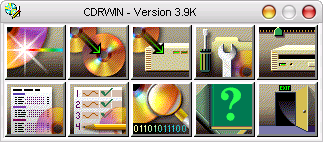
Next click on "Extract Disc/Tracks/Sectors" :

Select the source drive hosting the game (CD Reader).
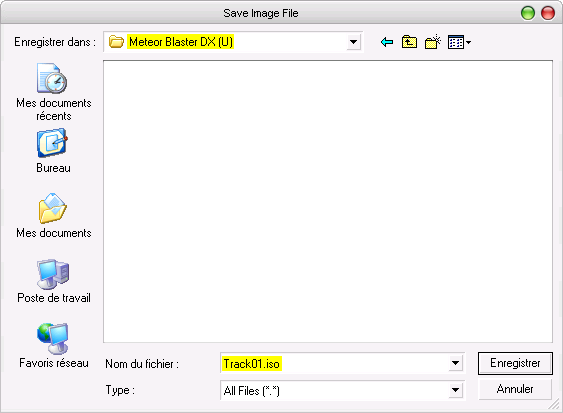
From the "Image Filename" tab, select your "Meteor Blaster DX (U)" folder.

For the filename type "Track01.iso" and save.
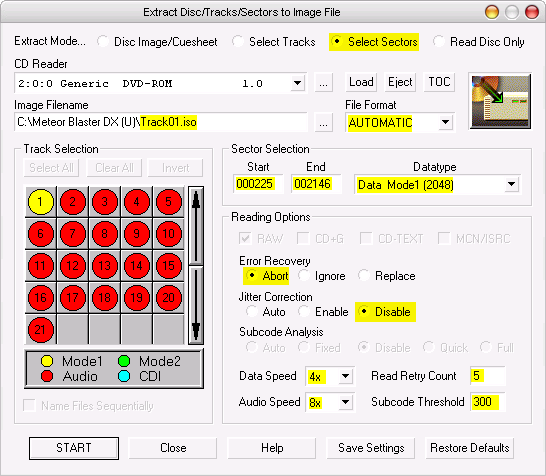
Set the reading options as on the picture below and hit "START" :
The data track extraction will start :
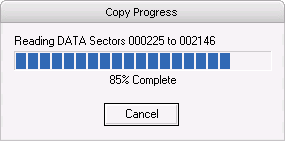
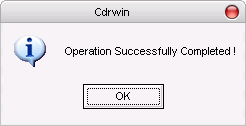
And will end like this :
There is now a "Track01.iso" file in your "Meteor Blaster DX (U)" folder.

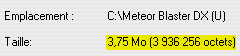
"Track01.iso" must be 3,75 Mb (3 936 256 bytes) :
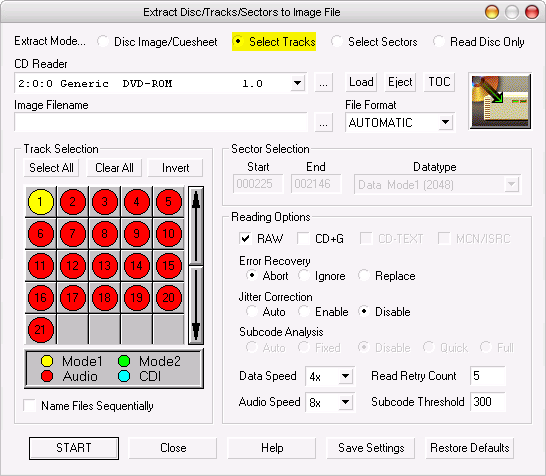
Now to extract the audio tracks check the "Select Track" box :
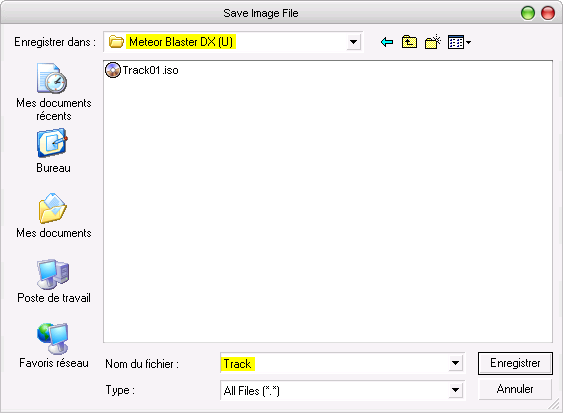
From the "Image Filename" tab, select your "Meteor Blaster DX (U)" folder.
For the filename type "Track" (Tracks will be automatically renamed numerically) and save :
Select all the audio (red) tracks.
Set the reading options as on the picture below and hit 'START' :
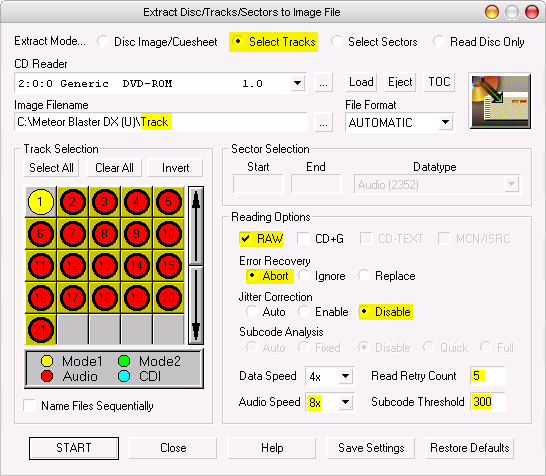
Audio tracks extraction will start :
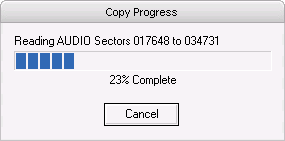
And will end like this :
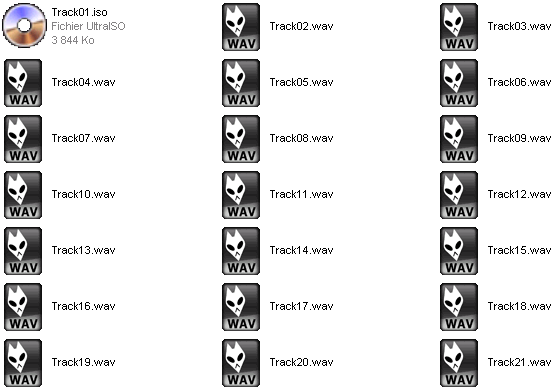
Your "Meteor Blaster DX (U)"
folder now contains your Iso/Wav files :
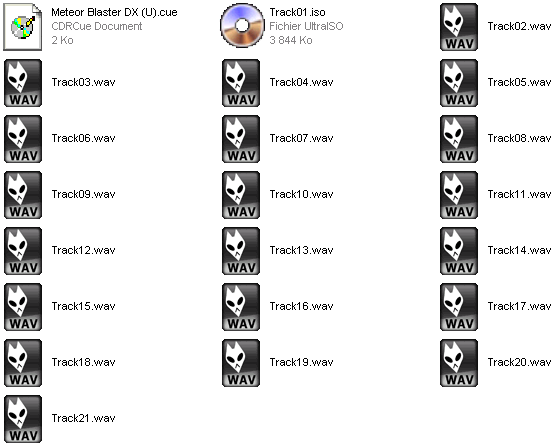
You just need to add this cuesheet.
All you have to do now is to burn the game.
To burn this game properly you MUST use the DAEMON Tools and CloneCD method.
DO NOT try to burn this Iso/Wav/Cue using CDRWin, Nero , Fire Burner or other software because they can't handle the structure used by this CD properly so you wouldn't get a correct backup.
Once the burning process is over, check your CD's TOC to make sure everything went fine.